

Netflix makes it easy to stream movies and TV shows online, but there are times when downloading a movie for offline viewing is more convenient. Whether you’re preparing for a long flight, traveling somewhere with unreliable internet, or simply want to watch a favorite movie without buffering, having an offline option can be useful.
Netflix itself supports downloads on compatible mobile devices and tablets, but there are some limitations. For example, not every title is available for download, and Netflix’s Windows app does not currently support downloading titles.
If you want more flexibility with where and how you watch your downloaded movies, a desktop video downloader such as VidiFab Streaming Video Downloader can be another option.
The Official Netflix Download Method and Its Restrictions
If you are content with viewing content strictly within the Netflix app on a mobile device, the built-in download button is your starting point. The process is straightforward: navigate to a title, tap the download icon (a downward-pointing arrow), and wait for the file to save.
Netflix allows you to keep up to 100 active downloads per device, depending on your subscription plan. Features like “Smart Downloads” can automatically download the next episode of a series you are watching and delete the one you just finished to free up space. This is convenient for casual binge-watching on a smartphone or tablet.
However, the official method has strict limitations that frustrate power users:
Expiration Dates: Downloads are not yours forever. Content licenses dictate that some downloads expire as early as 48 hours after you first press play. If a title leaves the Netflix service, your downloaded copy vanishes immediately.
Proprietary Format: Files saved by the Netflix app are locked in a proprietary cache (often with an .nfv extension). You cannot play these files in VLC, edit them, or transfer them to an external hard drive.
Device Restrictions: You cannot download titles on a Windows laptop or a Mac through the official app. While a Windows app previously allowed downloads, Netflix removed this functionality in mid-2024, pushing users toward mobile-only viewing. Mac users have never had a native Netflix app for offline saving.
VidiFab Solution: Download Netflix Movies to Your Computer
If your goal is to save Netflix movies as standard video files, VidiFab Streaming Video Downloader provides a desktop-based solution. It supports Netflix along with other major streaming platforms and can save videos in MP4 or MKV formats. According to its specifications, output can reach up to 1080p, with options for AAC or EAC3/AC3 5.1 audio and embedded or separate subtitles.
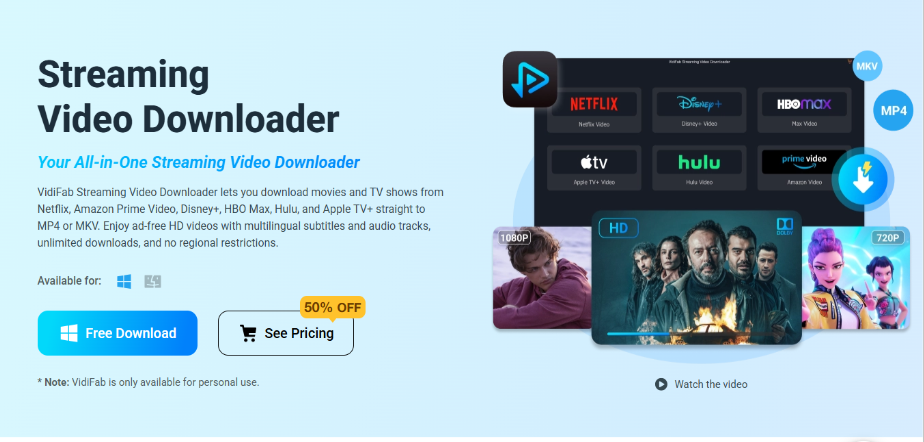
Step 1. Install VidiFab
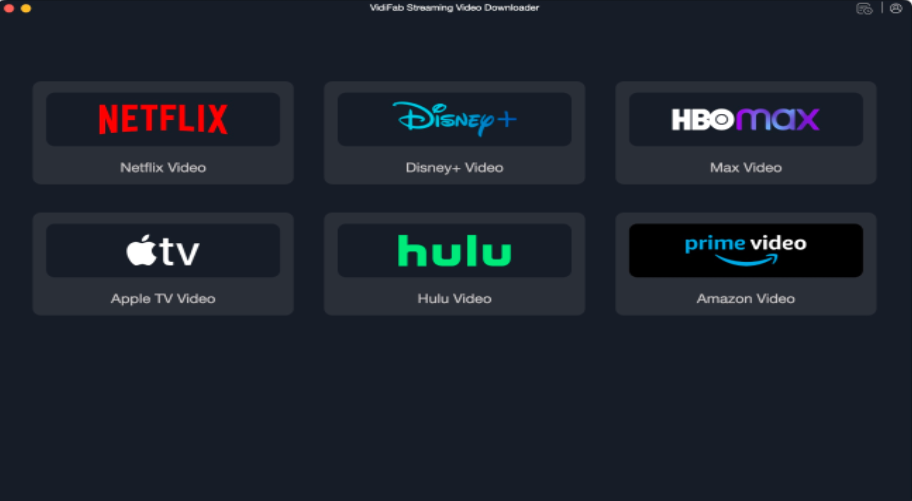
Download and install VidiFab Streaming Video Downloader on your Windows PC or Mac. Launch the program and select Netflix from the supported streaming services.
Step 2. Sign In to Netflix
Use the built-in web player to sign in to your Netflix account. Then browse or search for the movie you want to save for offline viewing.
Step 3. Choose a Movie
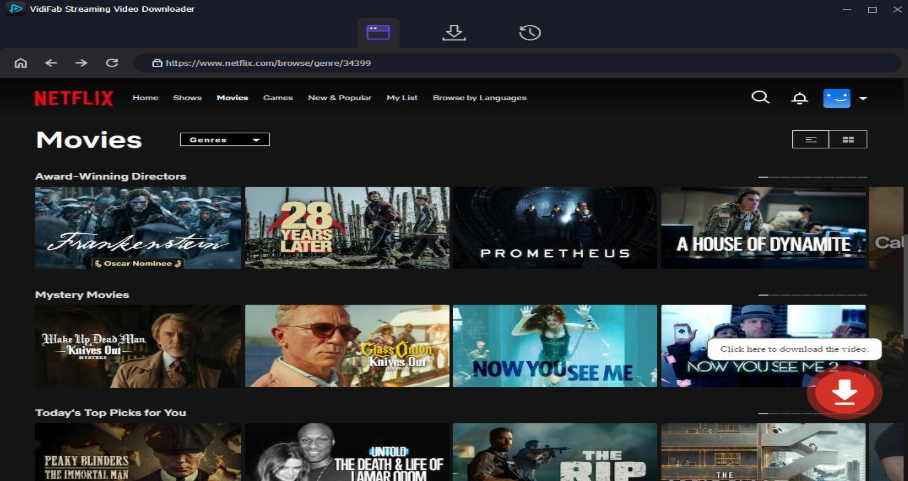
Open the movie’s page and click the download button. VidiFab allows you to customize settings such as video format, resolution, audio track, and subtitles before starting the download.
Step 4. Start the Download
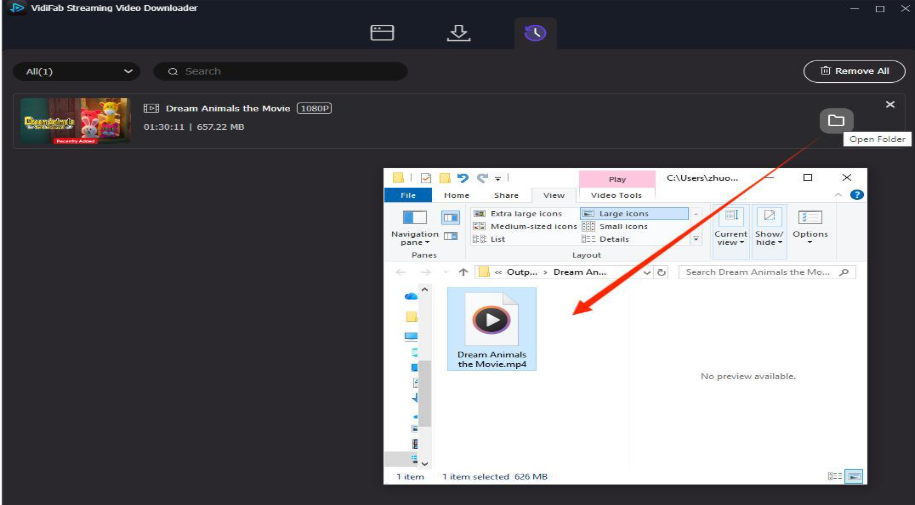
Choose MP4 or MKV as the output format, select your preferred quality and subtitle options, and click Download. Once processing is complete, you can locate the saved video in your selected output folder.
VidiFab also supports batch downloading, which can be useful when you want to prepare several movies or an entire series for offline viewing rather than downloading titles one at a time.
Why Download Netflix Movies to MP4 or MKV?
Saving videos in a standard format can make offline viewing more flexible. Instead of keeping a download inside the Netflix app, MP4 or MKV files can be managed through your regular media library and played with compatible media players.
VidiFab supports resolutions including 1080p and 720p, while also offering subtitle and audio-track options. It can therefore be useful for users who want to organize their downloaded video collection on a computer.
The software supports both Windows and macOS, making it suitable for users who prefer managing their streaming video library from a desktop or laptop.
Final Thoughts
Downloading Netflix movies can be useful when you know you’ll be without a stable internet connection. For straightforward offline playback, Netflix’s own download feature is the easiest choice, provided the title and device are supported.
For users who want a more flexible desktop workflow, VidiFab Streaming Video Downloader offers tools for saving Netflix movies as MP4 or MKV files, with customizable video quality, subtitles, and audio options. If you’re looking for a convenient way to prepare Netflix content for personal offline viewing, it’s worth exploring what VidiFab can offer.
